
Telegram with UbiBot Trigger Alerts and UbiHTTP
2025-11-07 08:22:03
We now support integration with Telegram via HTTP to provide additional alert notification methods.
This example demonstrates how to integrate the UbiBot platform with Telegram. You will need to first create a UbiHTTP item on the HTTP interaction page first, then configure the corresponding trigger rule under channel page. When the rule is triggered, it will invoke the Telegram bot to send a message to your group or channel.
Note: If the bot cannot be added, it may be due to privacy mode settings or group permission restrictions. Please follow the steps below to adjust the settings.
To ensure the bot functions properly, you need to assign it the appropriate permissions.
In the group, click the bot's name and select "Promote to Administrator". Then, enable the following permissions as needed:
By default, many bots operate in Privacy Mode, meaning they can only see messages that mention them or are replies to them.If you want the bot to monitor all messages (e.g., for keyword detection or automatic greetings), you need to disable privacy mode.
To disable privacy mode, send '/setprivacy' to @BotFather. Select your bot and choose "Disable" to turn off privacy mode.Once disabled, the bot will be able to receive all messages in the group (administrator permissions are still required).
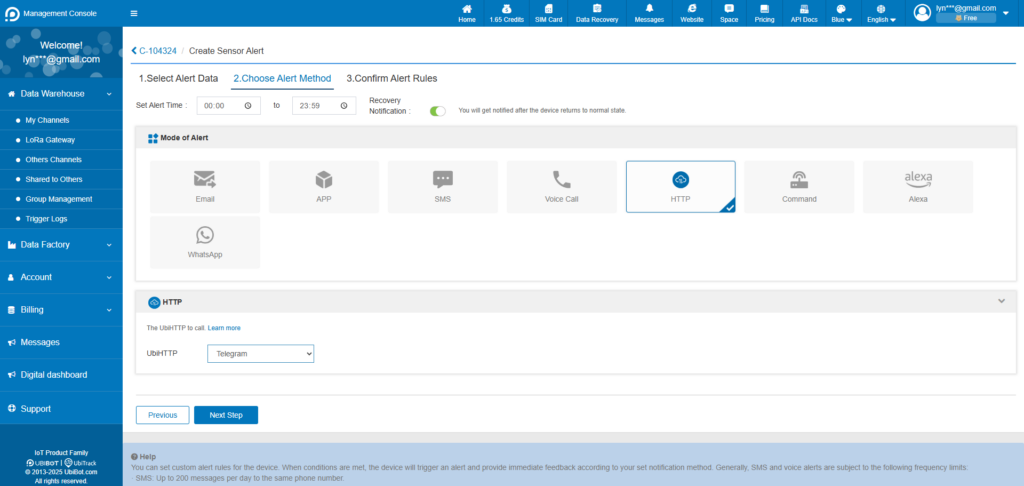
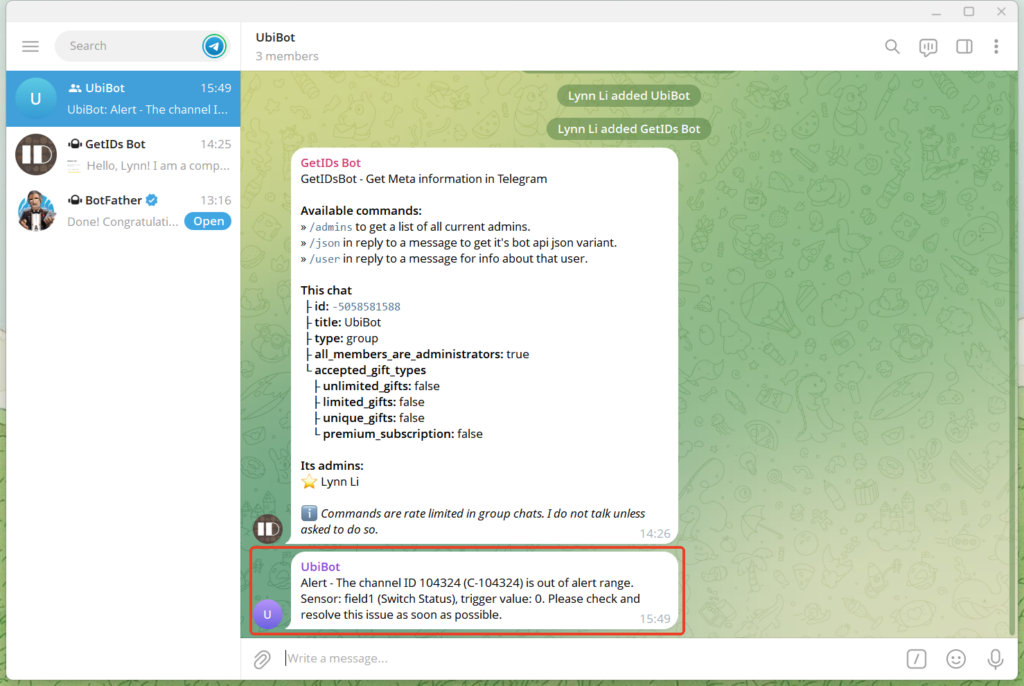
Create an alert rule from the console panel of the selected channel. Choose "HTTP" as the alert mode and select the created UbiHTTP in step 4. When the this sensor rule is satisfied, it will trigger the UbiHTTP to send a message the your Telegram group.
This example demonstrates how to integrate the UbiBot platform with Telegram. You will need to first create a UbiHTTP item on the HTTP interaction page first, then configure the corresponding trigger rule under channel page. When the rule is triggered, it will invoke the Telegram bot to send a message to your group or channel.
Steps 1: Create a Telegram Bot
- Search for @BotFather, and send '/start'.
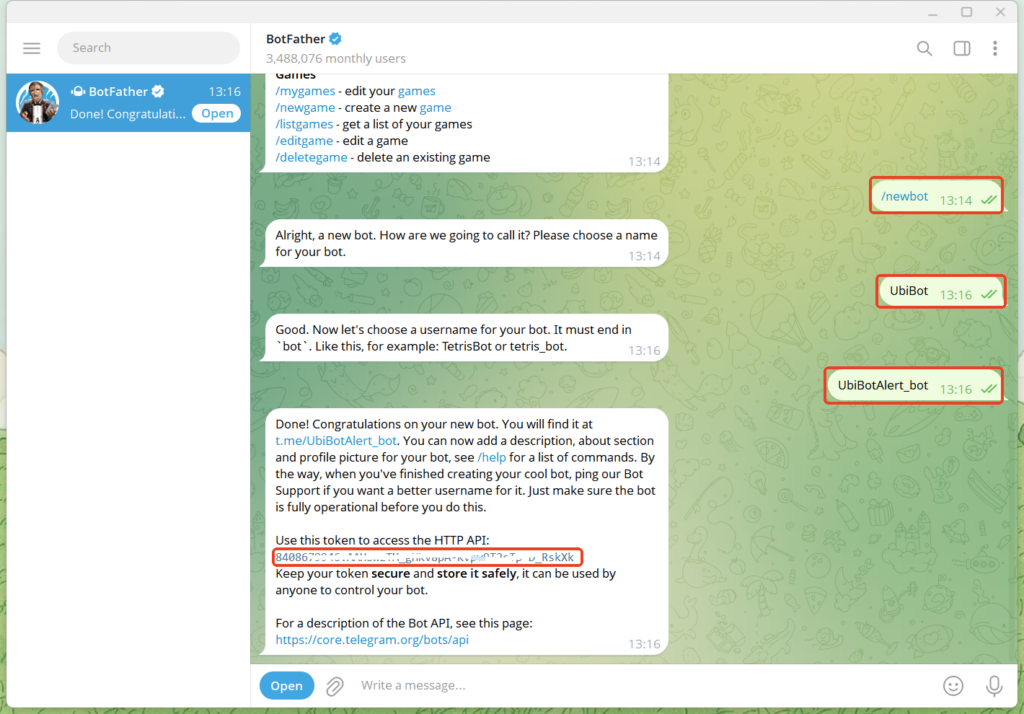
- Send '/newbot' to create a bew bot.
- Set the bot's name and username (such as UbiBotAlert_bot).
- After successful creation, @BotFather will provide an API Token (such as 123456:ABC-DEF1234ghIkl-zyx57W2v1u123ew11).
Steps 2: Add the bot to the group
- Create and open your group.
- Tap the group name to access settings.
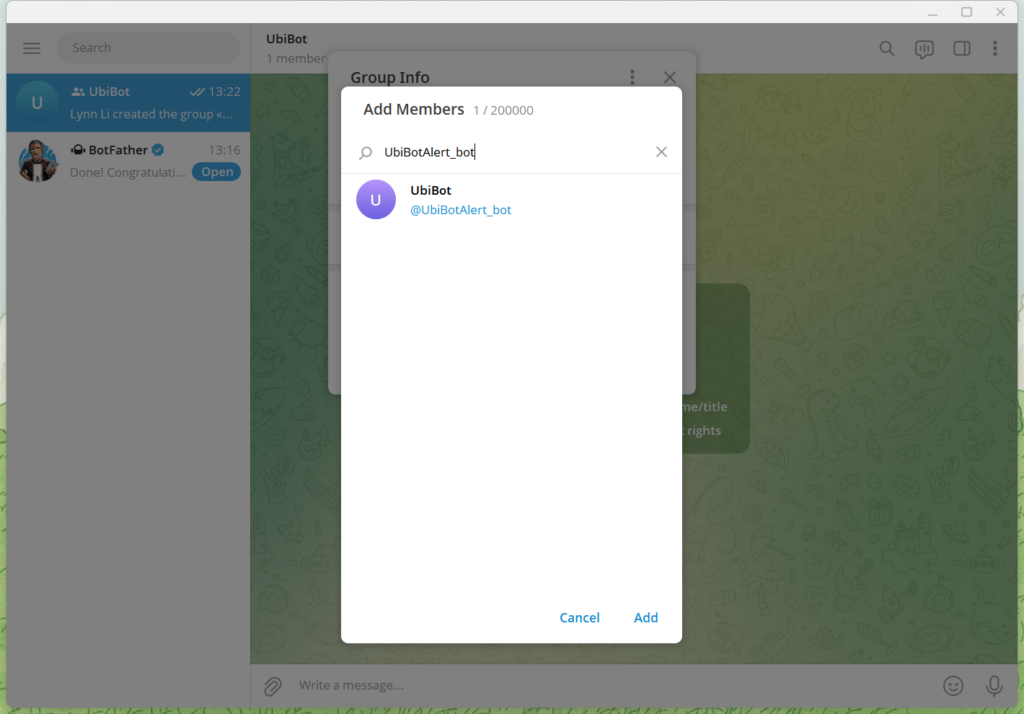
- Select "Add members", search for the bot's username you just created (e.g. UbiBotAlert_bot) and add the bot.
Note: If the bot cannot be added, it may be due to privacy mode settings or group permission restrictions. Please follow the steps below to adjust the settings.
- Set Bot Permissions
To ensure the bot functions properly, you need to assign it the appropriate permissions.
In the group, click the bot's name and select "Promote to Administrator". Then, enable the following permissions as needed:
- Delete Messages: Allows the bot to clean up spam or unwanted messages.
- Restrict Members: Enables the bot to mute or remove members.
- Invite Users via Link: Allows the bot to create or share invite links.
- Change Group Info: Allows the bot to modify group details such as name or profile picture.
- Post Messages Anonymously: Usually not required.
- Adjust Bot Privacy Settings
By default, many bots operate in Privacy Mode, meaning they can only see messages that mention them or are replies to them.If you want the bot to monitor all messages (e.g., for keyword detection or automatic greetings), you need to disable privacy mode.
To disable privacy mode, send '/setprivacy' to @BotFather. Select your bot and choose "Disable" to turn off privacy mode.Once disabled, the bot will be able to receive all messages in the group (administrator permissions are still required).
Steps 3: Retrieve the group chat_id
- Search for @getidsbot and click START or send the '/start'.
- Add @getidsbot to your group.
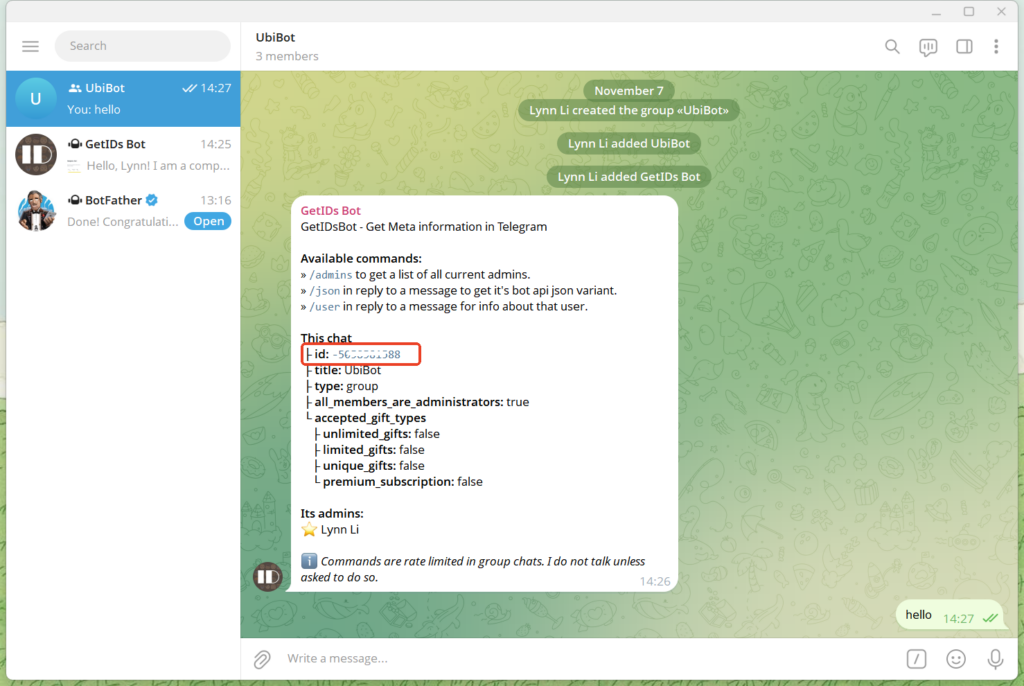
- The bot will send the group ID, which is usually a negative number (for example, -50******88).
Steps 4: Set up HTTP
- Log in to the Ubibot console(console.ubibot.com), navigate to HTTP interaction page.
- Create a HTTP.
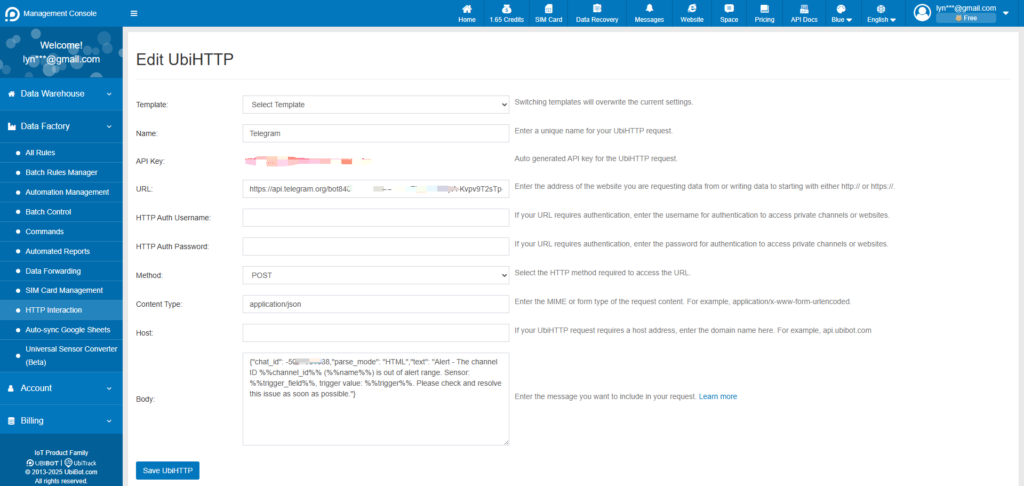
- Enter the URL, select "POST" method and enter content type "application/json". The URL should be "https://api.telegram.org/botAPI Token/sendMessage", the API Token is the token obtained in the first step, e.g. https://api.telegram.org/bot8408679946:AAHowzTM_gHKv8pA-Kvpv9T2sTp-D_RskXk/sendMessage.
- The Body contains the message content to be sent, and the chat_id must be replaced with the group chat ID obtained in the third step. If you need to adjust the content, please refer to the FAQ.
Steps 5: Create an Alert Rule
Create an alert rule from the console panel of the selected channel. Choose "HTTP" as the alert mode and select the created UbiHTTP in step 4. When the this sensor rule is satisfied, it will trigger the UbiHTTP to send a message the your Telegram group.